Creator guide
Publish your first slot theme
The Creator Studio at marketplace.spinloo.com takes you from theme details to a published slot theme in six steps. This guide lists the files to prepare, shows each screen, and explains what each step needs before it lets you continue.
Screenshots show the studio filled in with example data: a theme called Golden Classics, built from Spinloo's default symbols and sounds. Themes play with virtual credits, which have no cash value.
On this page
Before you start
Know what you agree to first. You must be 18 or older to publish. Publishing is free and unpaid. You keep ownership of your art, and Spinloo gets a free, non-exclusive licence with no end date to show and use your theme in its games, gallery and promotion, which continues even if the theme is removed. You can update a published theme, but you can't remove a single theme yourself. Deleting your Spinloo account removes all your published themes. The creator terms have the details.
The studio keeps your work as a draft in the browser tab you use. After a reload or a trip to the sign-in screen, the studio brings it back and says "Restored your draft". Closing the tab or choosing Sign out discards it. Each step stays locked until the one before it is complete. Gather these files before you start:
- A cover image: PNG or JPEG in a 16:9 shape, up to 10 MB.
- Four special symbols as PNG or JPEG files: Wild, Bonus, Dream Spin and Bingo Ball.
- Between 9 and 14 standard symbols as PNG or JPEG files.
- Two MP4 animations, one for the Spin Bonus and one for the Dream Wheel. Each must be H.264 video in the Baseline, Main or High profile, no larger than 1920 × 1080 pixels (or 1080 × 1920), and up to 10 MB. When three Spin Bonus or Dream Spin symbols land, the game plays the matching animation over them, cut to a circle from the middle of the frame, so a square video works best. A square video can be up to 1440 × 1440 pixels.
- Nine MP3 sound effects, one per game event: spin start, reel stop, small win, medium win, big win, jackpot win, bonus trigger, dream trigger and wild land. Each can be up to 10 MB; the studio recommends under 500 KB.
- A plan for five reel strips and a paytable. Steps 3 and 4 below explain both.
Each upload must be 10 MB or less: a PNG or JPEG image for the cover and symbols (the studio converts a JPEG to PNG), an MP4 for each animation and an MP3 for each sound. The marketplace checks what the file actually contains, so renaming a file to a different extension will not get it accepted. It also refuses an animation the game can't play, such as a video that isn't H.264 or one exported in the High 4:4:4 profile.
Find your way around
The links at the top of every marketplace page lead to four places:
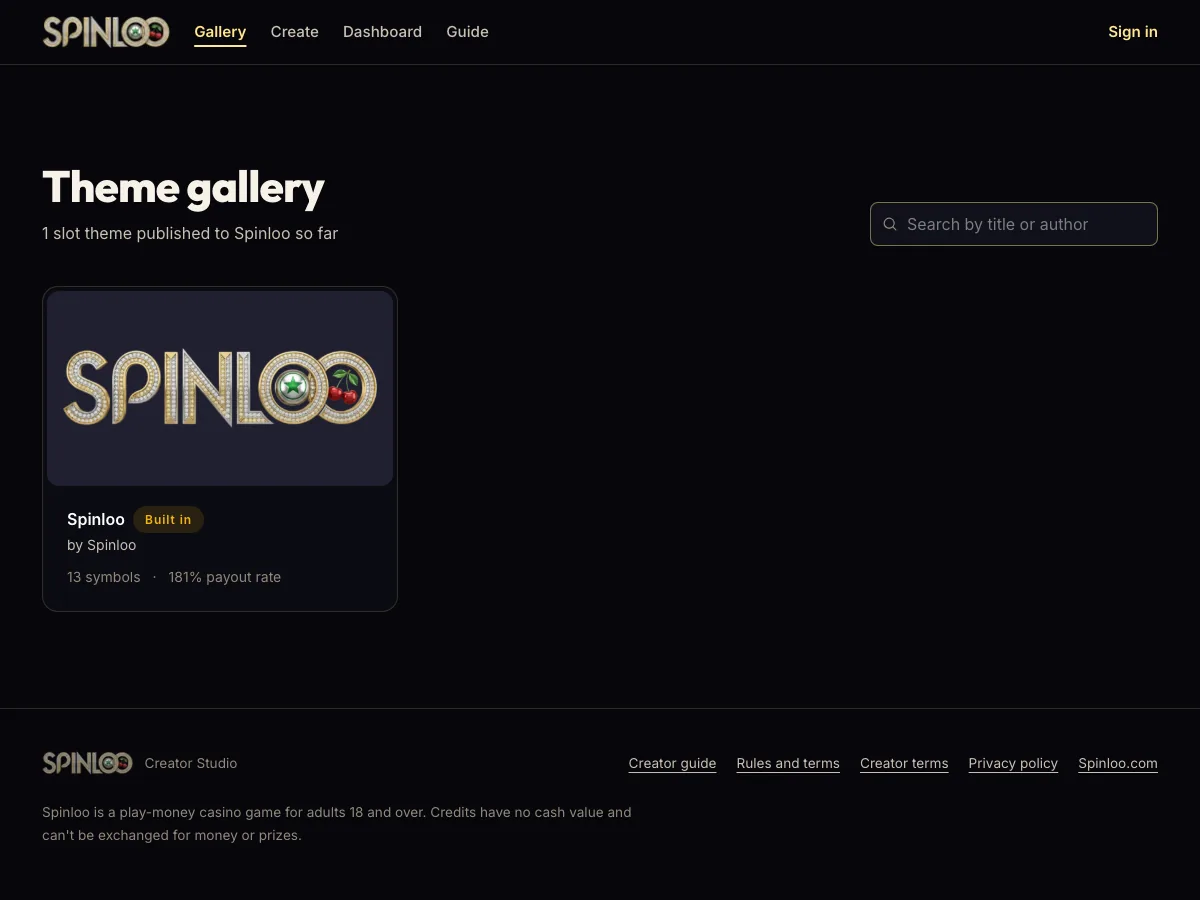
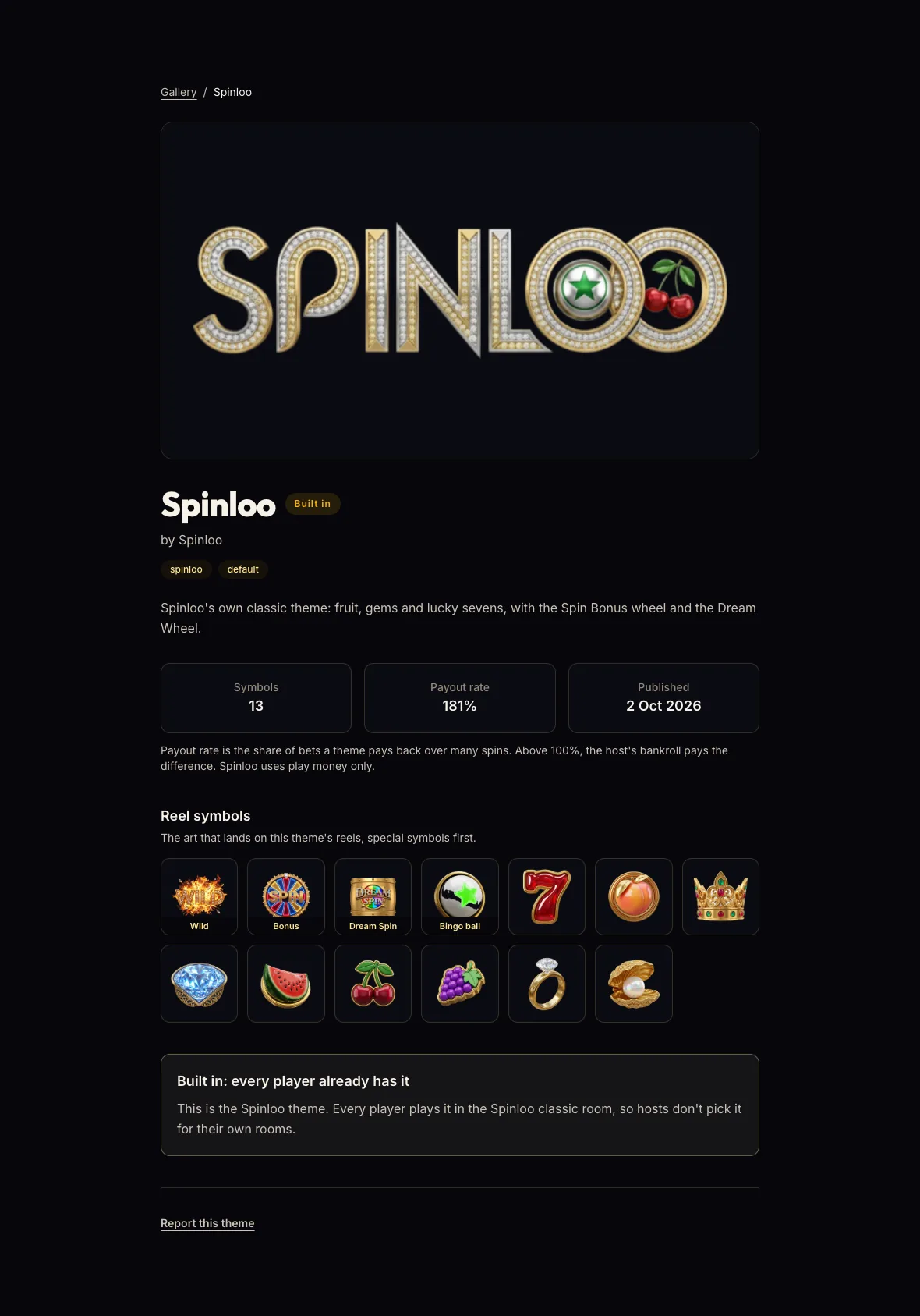
- Gallery is the theme gallery: every published theme. Open one to see its cover, symbol count, payout rate, publish date and reel symbols.
- Create opens the six-step Creator Studio.
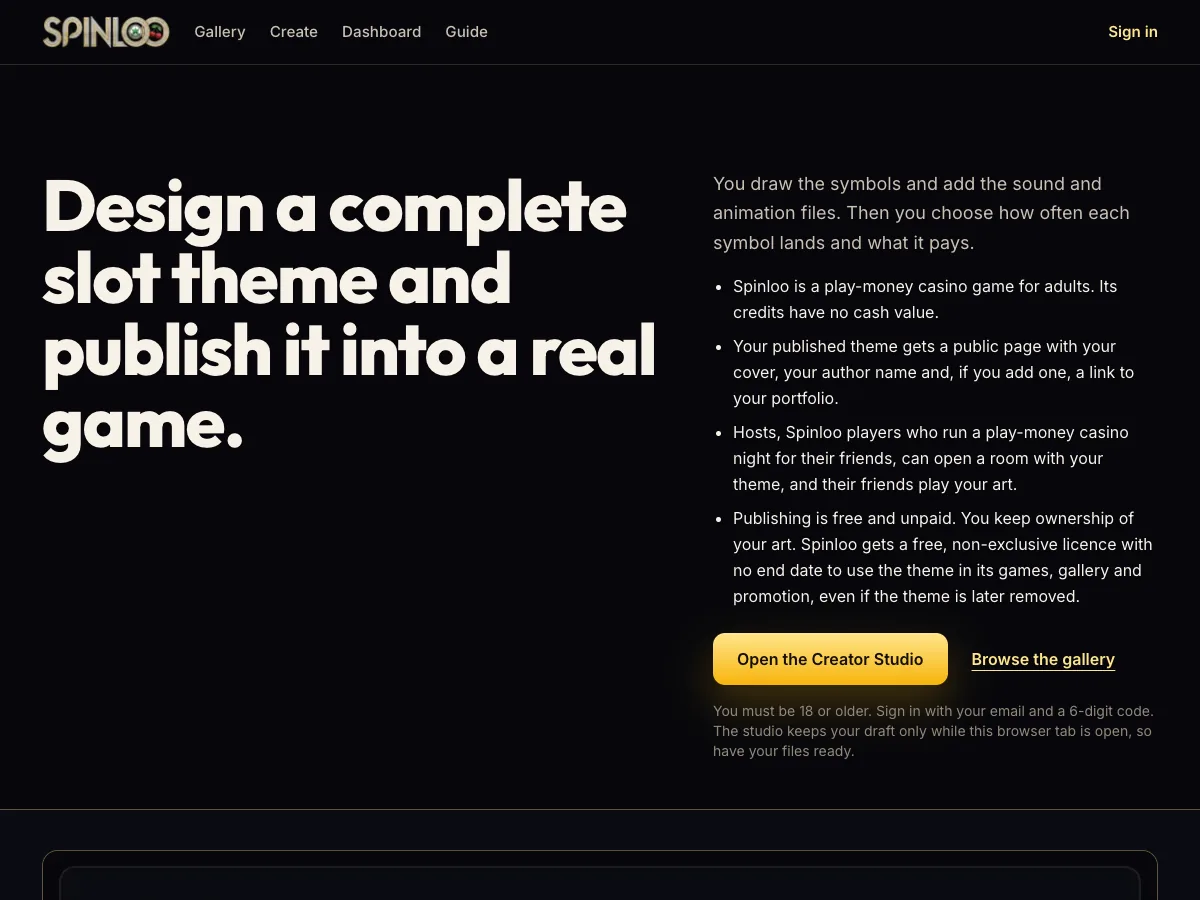
- Dashboard shows your published themes with their status, plays, payout rate and publish date, and an Update button for each. You can also sign in here.
- Guide brings you back to this page.
Sign in first
Every upload is tied to your Spinloo account, and you must be 18 or older to publish. When you open Create signed out, the studio shows "Sign in before you start" above the steps and keeps the step 1 fields locked. Choose Sign in to start there, or Sign in on the Dashboard.
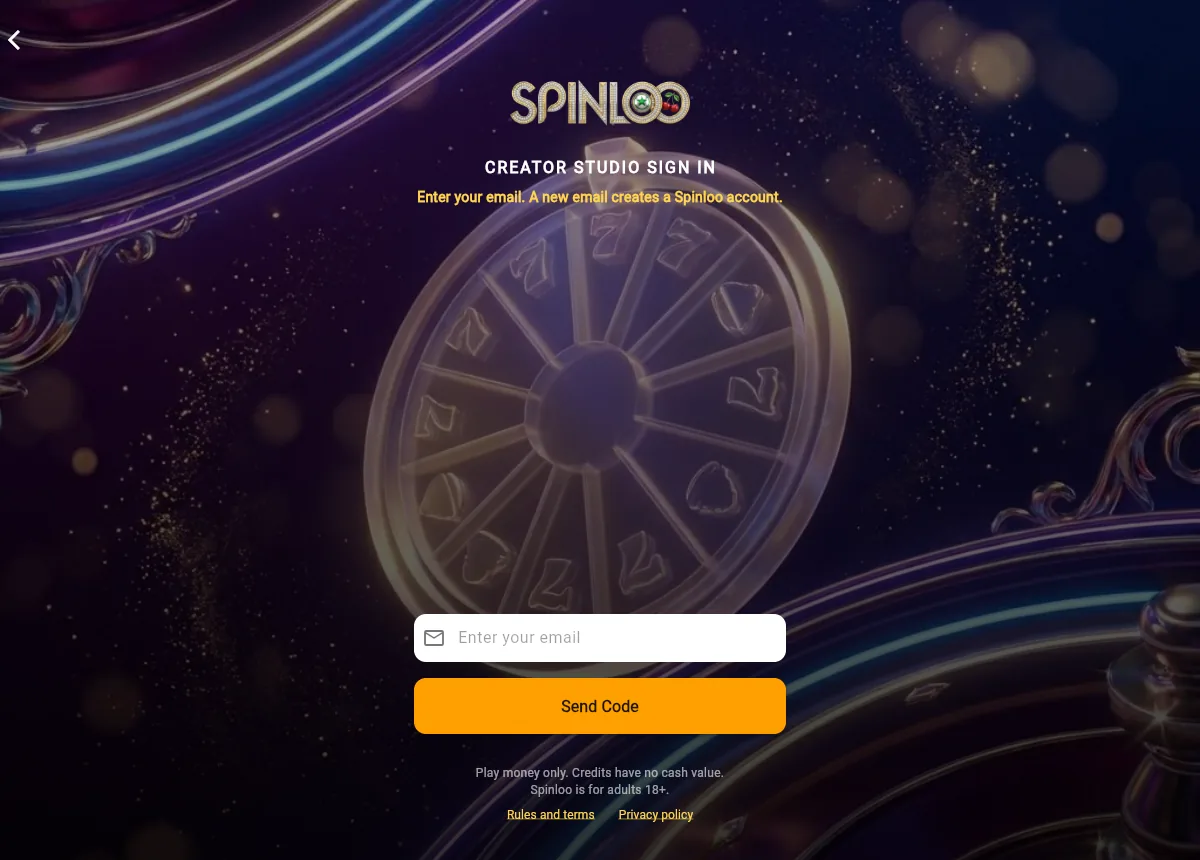
Enter your email address, then type the 6-digit code Spinloo emails you. A new email address creates a new Spinloo account, so use the same one each time. You return to the marketplace signed in, and the studio shows "You're signed in" with the fields unlocked.
If you play Spinloo in the same browser and are signed in with your email, the sign-in screen offers Continue as followed by your email instead. Choose it to return to the studio with no code; your game stays signed in. Use a different email shows the email form.
Step 1: Theme details
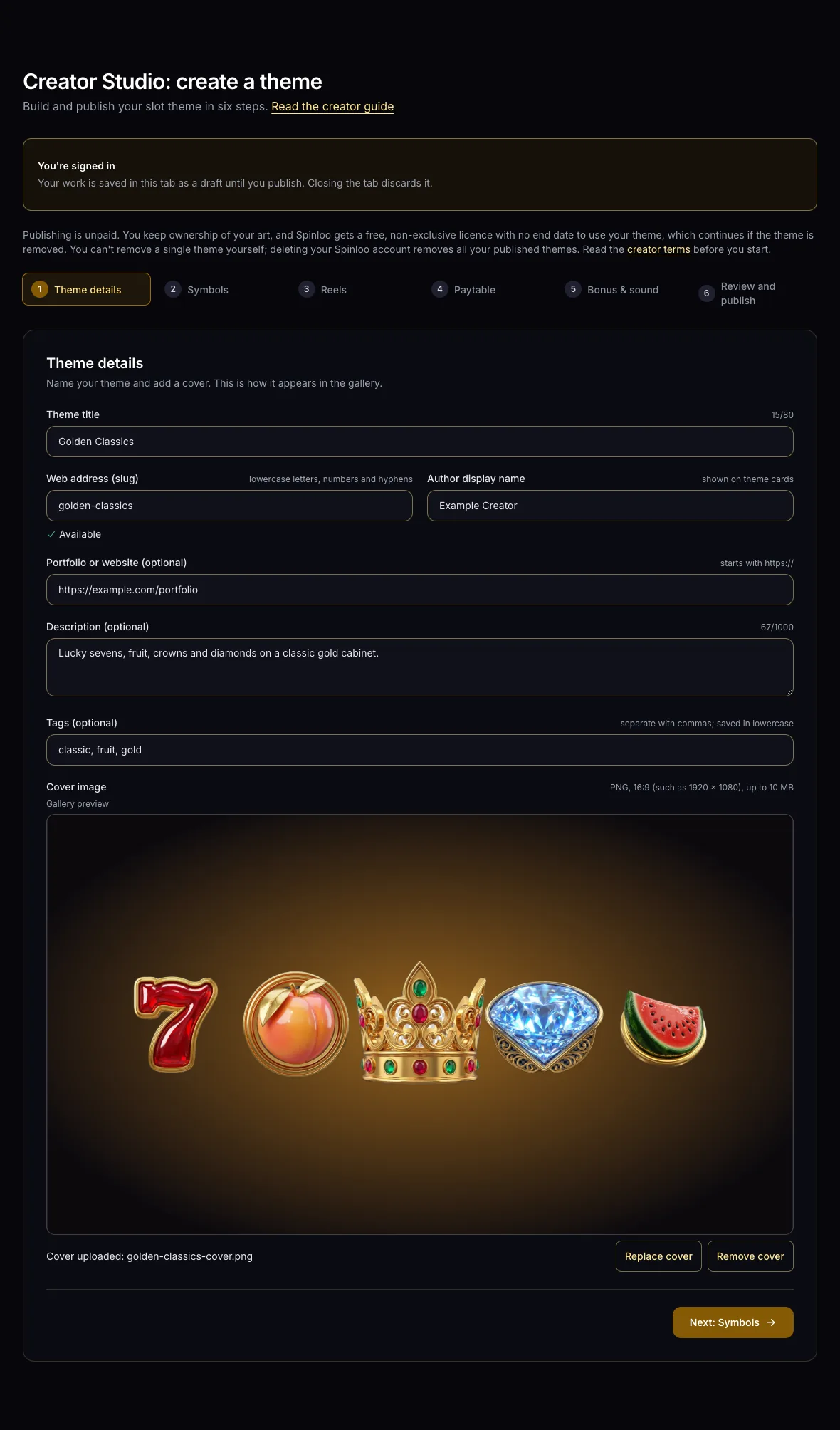
- Theme title is required, up to 80 characters.
- Web address (slug) fills in from the title. It allows lowercase letters, numbers and hyphens, up to 64 characters. The slug is your theme's permanent ID and appears in its web address. When you stop typing, the studio checks it and shows "Available" or "This web address is taken".
- Author display name is required and appears on your theme cards.
- Description and Tags are optional. Separate tags with commas; they are saved in lowercase.
- Portfolio or website is optional and must start with https://. On your theme's gallery page, your author name links to it.
- Cover image: after you choose the file, wait for the "Cover uploaded" line with your file name under the gallery preview. It confirms the upload finished. Replace cover and Remove cover sit next to it.
Next: Symbols unlocks once the title, slug, author name and cover are in place.
Step 2: Symbols
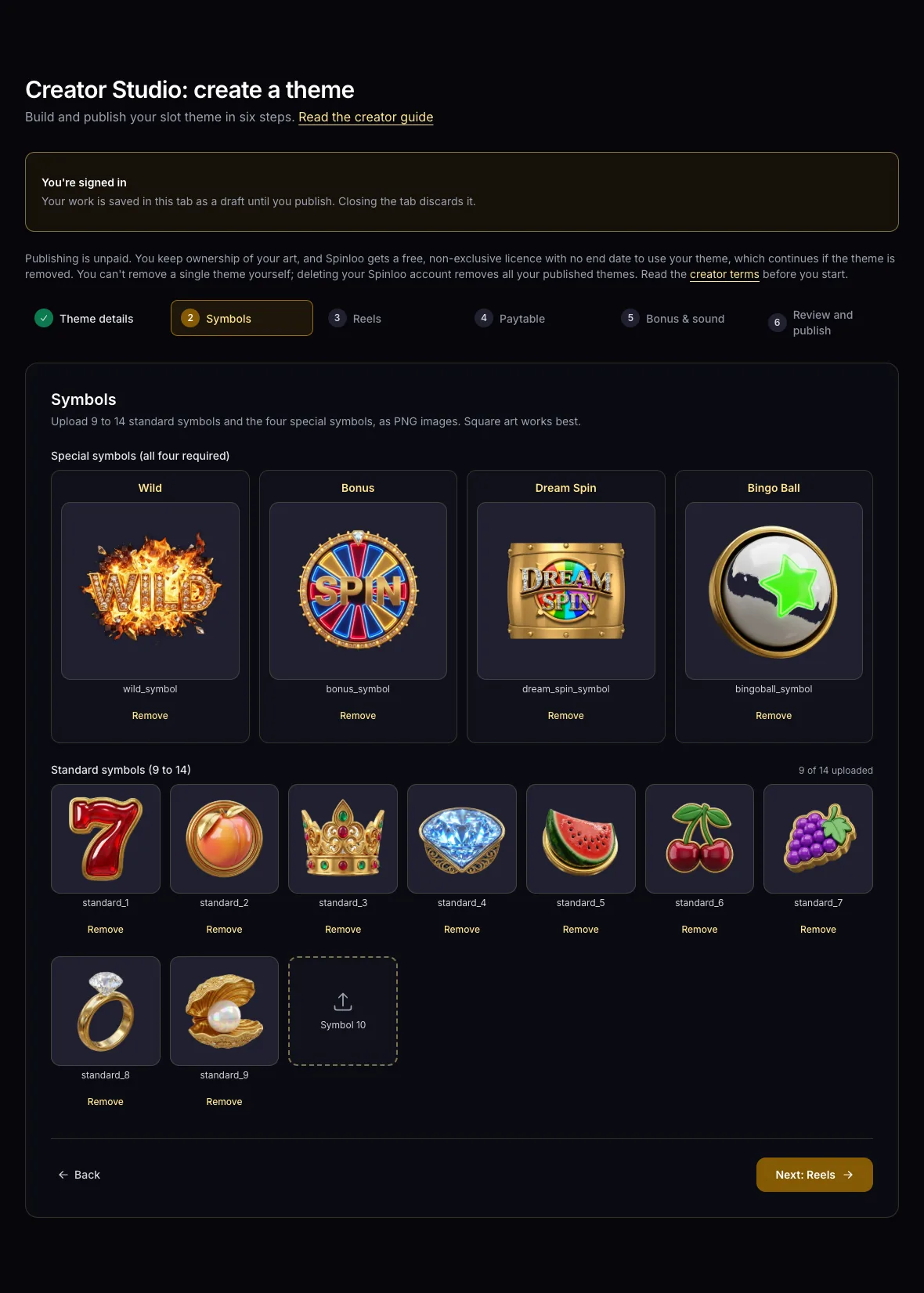
Upload the four special symbols in the top row, then 9 to 14 standard symbols below them.
- Wild substitutes for standard symbols.
- Bonus triggers the Spin Bonus wheel.
- Dream Spin triggers the Dream Wheel.
- Bingo Ball pays no slot credits and doesn't mark bingo cards.
The studio names your standard symbols standard_1, standard_2 and so on, in upload order. You will use these names in the next two steps. To replace a symbol, choose Remove under it and upload the new file. Reels show symbols in a square, so square art fills the space; the studio warns you when a file isn't square.
Step 3: Reel strips
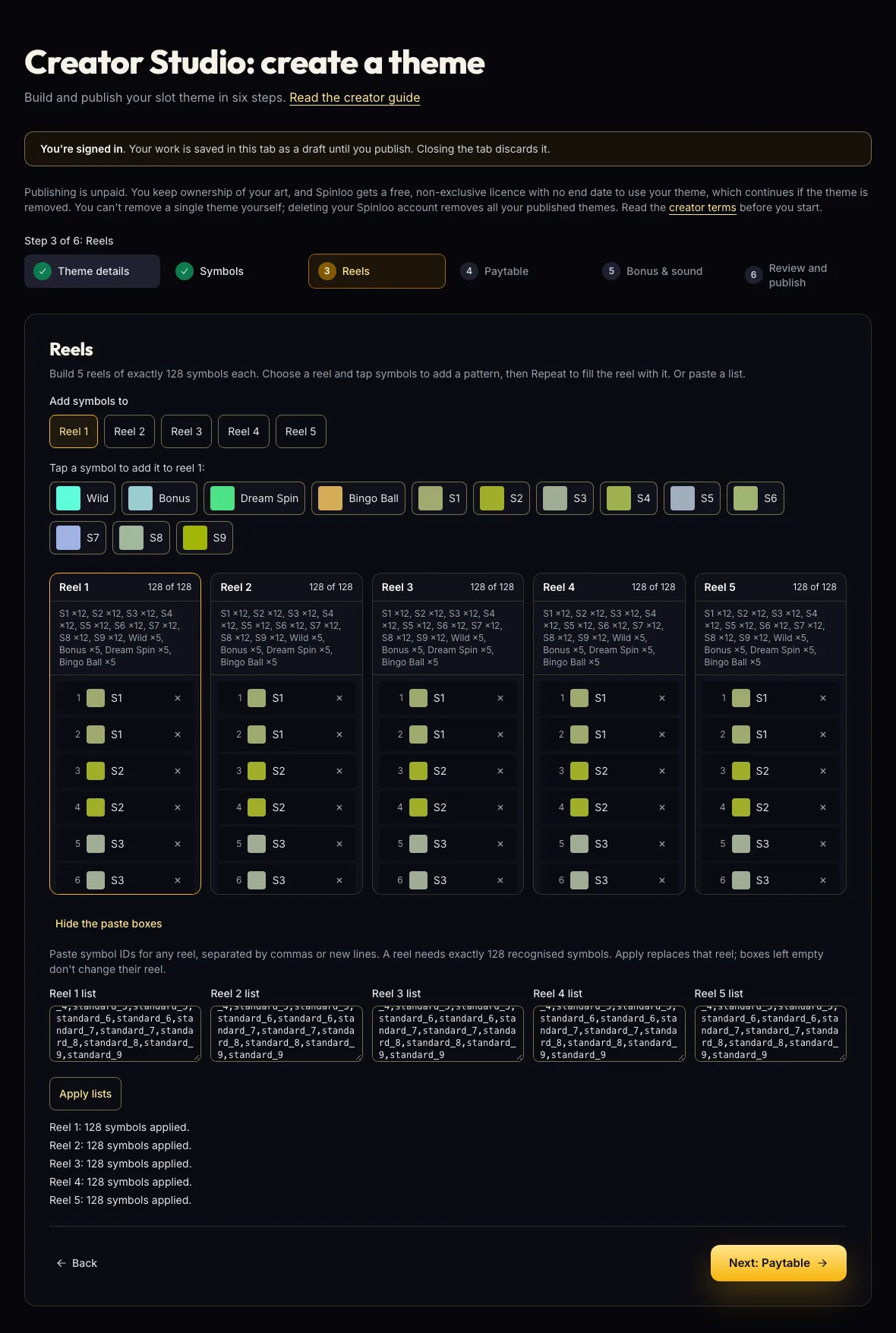
Each of the five reels is a strip of exactly 128 symbols, the number of stopping points the game draws from. The more often a symbol appears on a strip, the more often it lands, which also changes how much the theme pays out.
- Choose a reel under Add symbols to, then tap symbols to add them to the end of that reel. The × next to an entry removes it.
- A short pattern is enough to start. Repeat to 128 fills the reel by repeating its symbols from the top, then cuts it at 128.
- For long strips, choose Paste a list of symbols instead. Paste symbol names separated by commas or line breaks into a reel's box, then choose Apply lists. A list replaces its reel only when it holds exactly 128 names the studio recognises, and the studio names any it doesn't. A box left empty doesn't change its reel.
- Each reel's header shows how many symbols it holds, such as "22 of 128".
Step 4: Paytable and payout rate
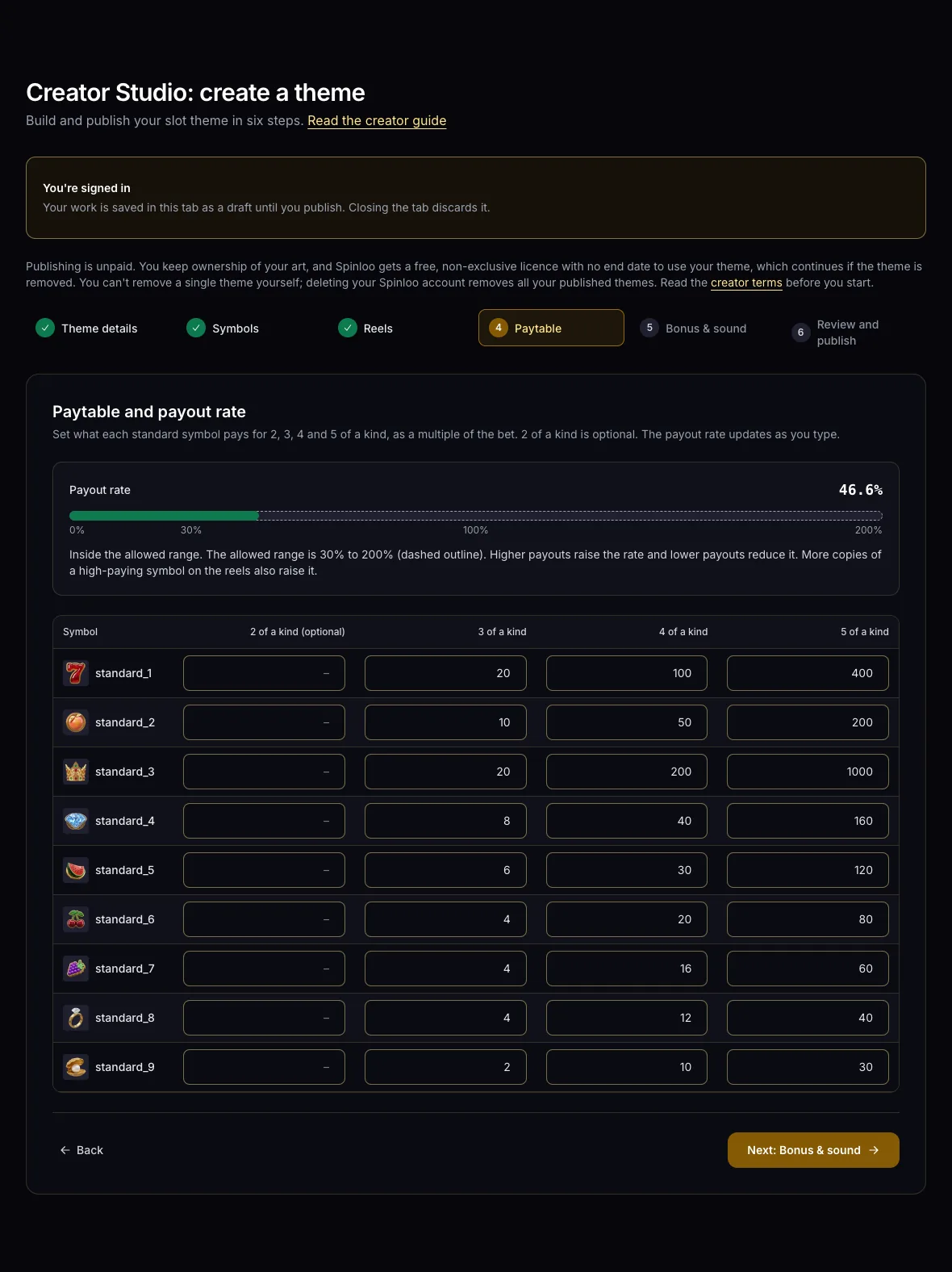
For each standard symbol, enter what it pays for 3, 4 and 5 of a kind, as a multiple of the bet. Fill in every cell in those three columns; 0 counts as a value. The 2 of a kind column is optional.
The payout rate gauge shows the share of credits the theme pays back to players over many spins (slot designers call this RTP, return to player). Next stays locked until the gauge reads between 30% and 200%. To raise the payout rate, increase multipliers or put high-paying symbols on more reel positions. To lower it, do the opposite.
At this step the gauge uses stand-in bonus wheels, because you set the real wheel segments in step 5. The final check in step 6 uses your real wheels, so your final payout rate is usually higher. The example reads 46.6% here and 69.8% at review.
Step 5: Bonus games and sound
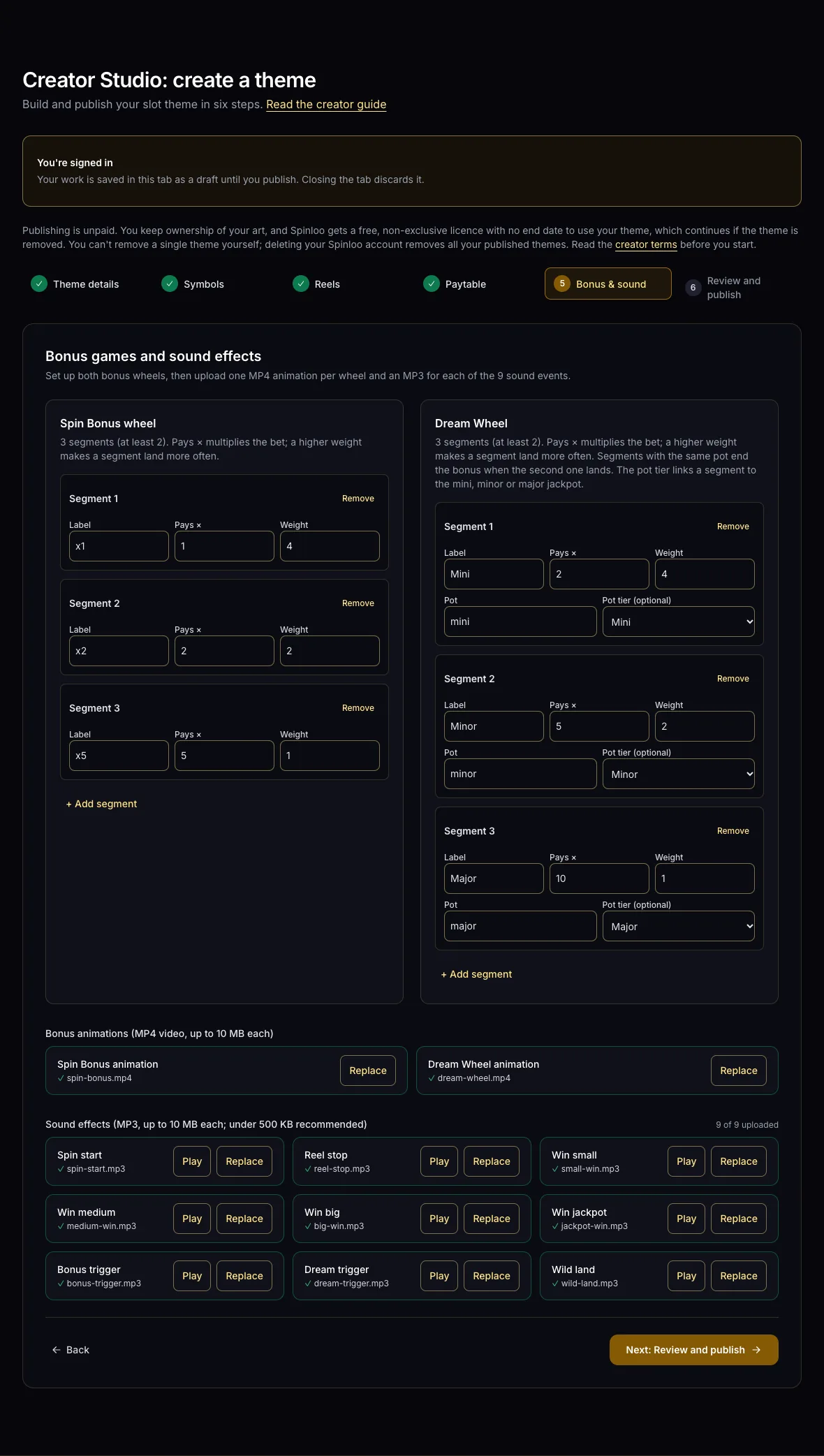
Both bonus wheels need at least two segments. Choose + Add segment under a wheel. Each segment has three boxes, from left to right:
- Label: the text shown on the wheel, up to 40 characters, starting with a letter or number.
- Pays ×: what the segment pays, as a multiple of the bet. A whole number, 0 or higher.
- Weight: a whole number, 1 or higher. A higher weight makes the segment land more often.
Dream Wheel segments also take a Pot name and an optional Pot tier (Mini, Minor or Major). Segments with the same pot end the bonus when the second one lands. The tier links that segment to the matching Spinloo jackpot.
Below the wheels, upload one MP4 animation per wheel and an MP3 file for each of the nine sound events. A row shows a check mark and the file name once its file has uploaded, and Play lets you listen to a sound.
Step 6: Review and publish
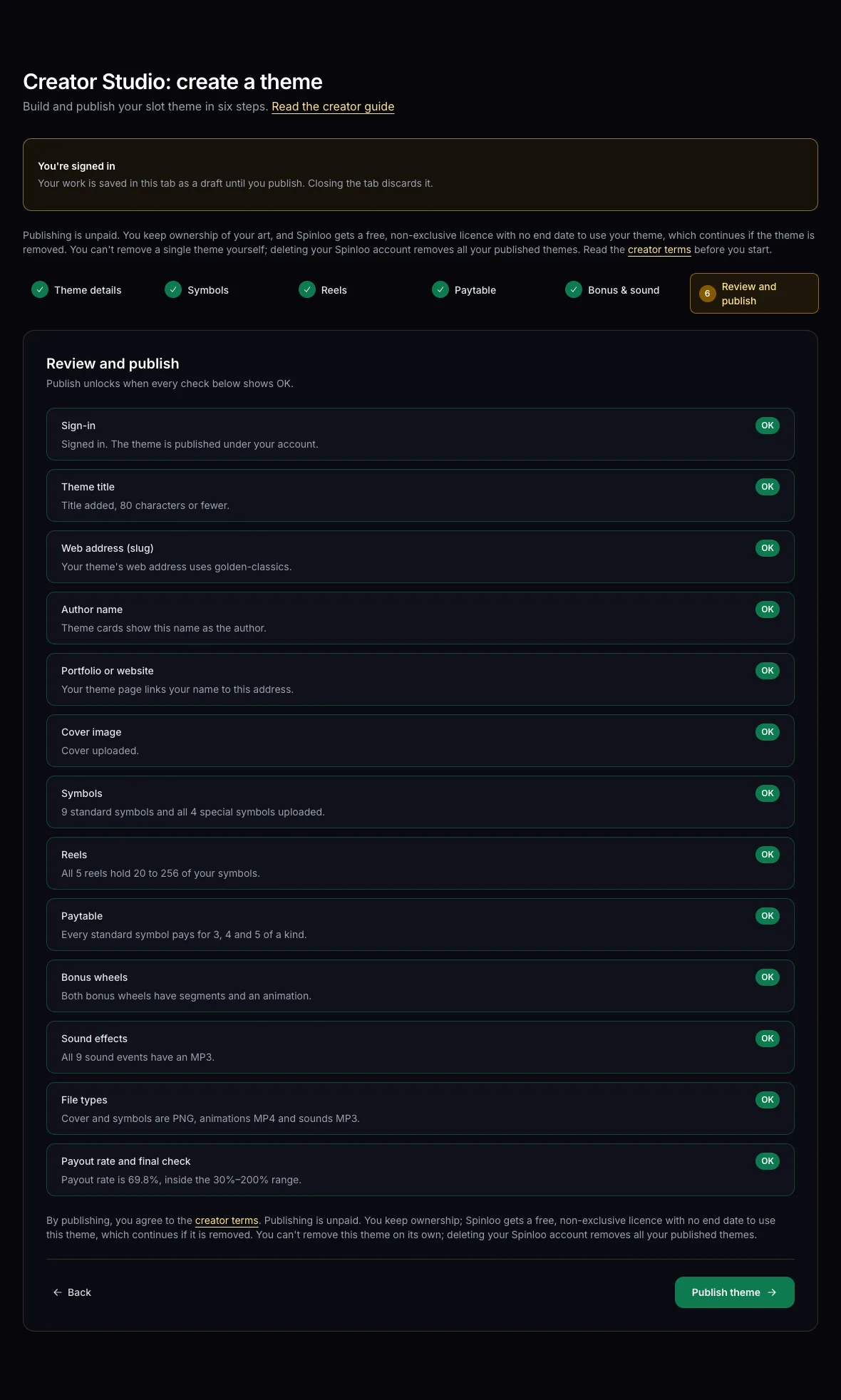
The review runs 13 checks: sign-in, title, web address, author name, portfolio link, cover, symbols, reels, paytable, bonus wheels, sound effects, file types, and a final check of the whole theme, including its payout rate. A failed check says what to fix. A failed final check explains a payout rate that is out of range, or names the step and field when it can find the problem. Use Back, or the step buttons at the top, to return to a step. Your draft keeps every entry while you do.
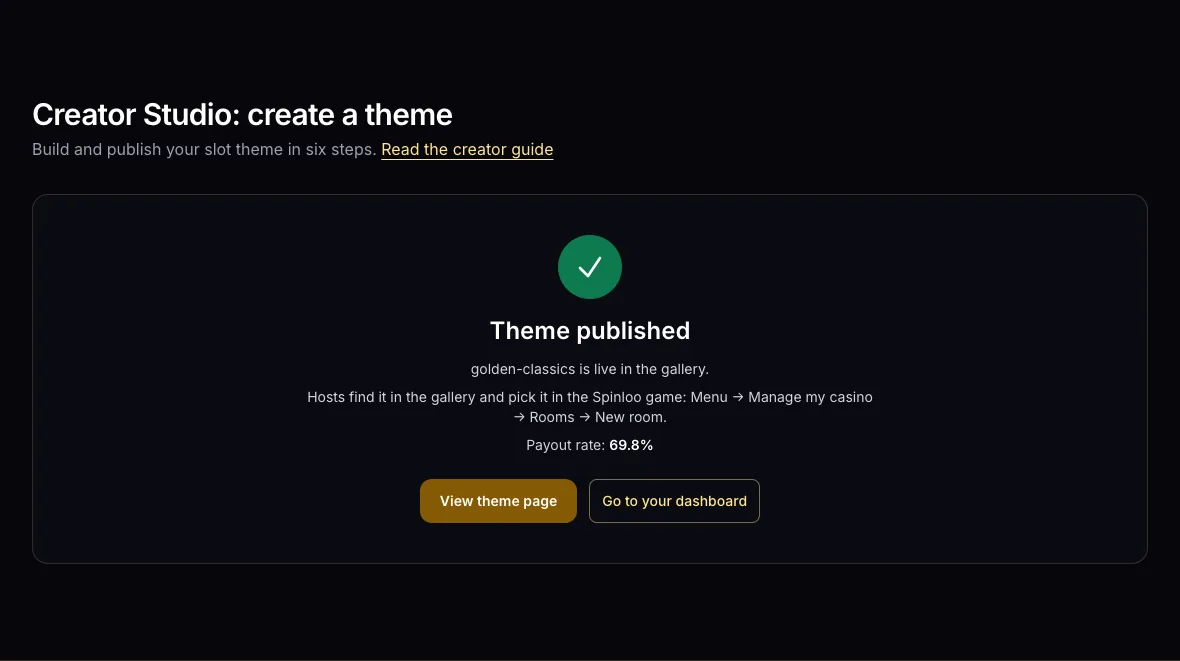
When every check shows OK, choose Publish theme. The marketplace signs your theme so the game can detect any tampering, then lists it in the theme gallery.
After you publish
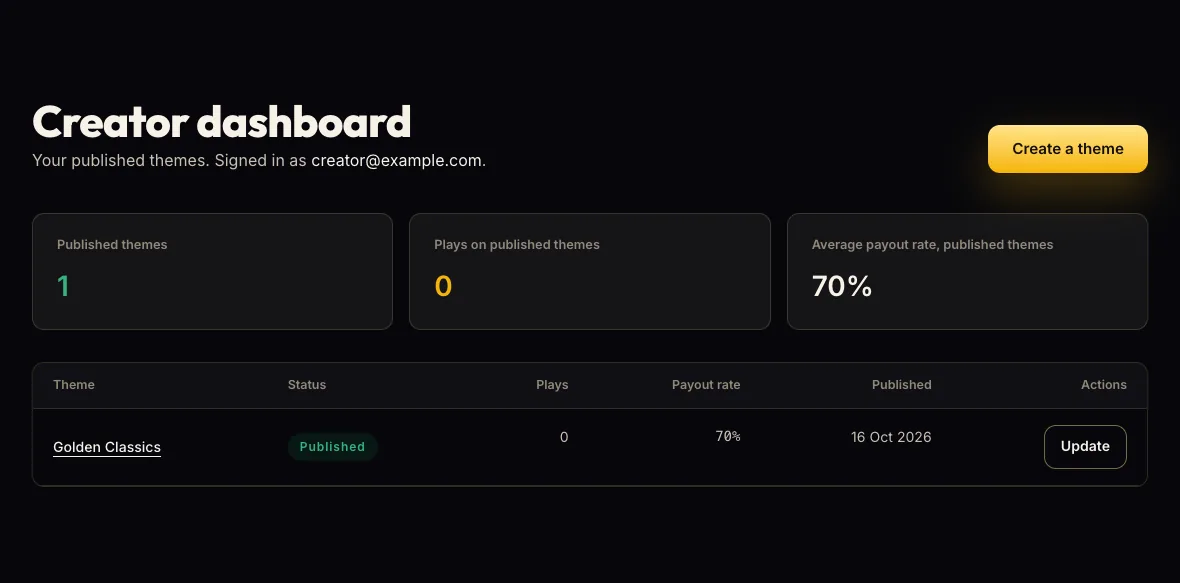
Your theme appears on your Dashboard with its status, payout rate, publish date and an Update button. The Plays column counts every spin players make on your theme in Spinloo, so it starts at 0.
Update a theme
Choose Update next to the theme on your Dashboard. The studio opens filled in with the published version, and its web address stays the same. Change what you need, then choose Publish update on the review step. The new version replaces the old one in the gallery right away, and rooms that use the theme switch to it within 6 hours. Only you can publish to your web address.
Removal and reports
You can't remove a single theme yourself. Deleting your Spinloo account removes all your published themes from the gallery and from hosts' rooms, and their web addresses become free for other creators.
Anyone signed in can report a theme. Spinloo admins review reports and can take a theme down, and your Dashboard then lists it as Taken down. The creator terms cover removal in full.
Where players see your theme
Published themes appear in the theme gallery. In the game, a host can open a room with your theme, and that host's friends can pick the room and play it.
Fix common problems
- The Next button stays grey. A required field or file is missing. Compare the step with its section above.
- The step 1 fields are locked. You're signed out. Choose Sign in to start in the "Sign in before you start" box above the steps. After you sign in, the studio opens again with the fields unlocked.
- An upload fails. Use a real PNG or JPEG image, MP4 video or MP3 file of 10 MB or less. Export animations as H.264 MP4 in the Baseline, Main or High profile, no larger than 1920 × 1080 pixels; a square video can be up to 1440 × 1440.
- The payout rate gauge is red. Adjust multipliers or reel strips until it reads between 30% and 200%. If step 6 reports a total above 200%, lower the high bonus multipliers or their weights.
- "This web address is taken." Another creator already uses that slug. Step 1 shows this under the slug field, and Next: Symbols stays grey until you type a free one.
- Publishing fails because the web address is taken. Another creator took the slug after you left step 1. Select Change web address, choose a different slug, then publish again.
- "Your session ended." Your sign-in ended, for example because you signed in to the game with a new code. Choose Sign in again; your draft is kept.
- Your draft disappeared. The studio keeps a draft only in the tab where you made it. Closing that tab or choosing Sign out discards it, and a new tab or another browser starts empty.